
How to Track TikTok Ads Conversions: TTCLID, Events API & Postbacks

Picture a coat check where the attendant hands out tickets but forgets to pin the matching number to your coat. Everyone gets a ticket. Nobody gets their coat back.
That’s TikTok ads tracking when the click ID goes missing. The sale happens, your offer pays out, and TikTok has no idea which ad earned it. So its algorithm keeps spending on the wrong audience, and you keep wondering why the campaign that looked so promising won’t scale.
The short version: TikTok adds a click ID called ttclid to every ad click. To track TikTok ads conversions reliably, you keep that ttclid with the visit, record the conversion through a pixel or a postback, and send it back to TikTok through the Events API with an event ID so nothing is counted twice. This guide shows how to do each step with Voluum, plus the macros to use and what to check when TikTok isn’t tracking conversions.
Why Does TikTok Ads Tracking Break So Easily?
Because the browser-only setup has a lot of weak spots. TikTok ads usually open inside the app’s own browser, ad blockers and privacy settings stop some pixel events, and every redirect between the ad and the offer is one more chance for a URL parameter to fall off.
Then there’s the affiliate twist. When the conversion happens on a network’s offer page, you can’t put the TikTok pixel there at all. The only record of the sale is the postback the network sends to your tracker. If that conversion never makes it back to TikTok, the platform optimizes blind.
The fix isn’t a smarter pixel. It’s a setup where the click ID travels with the user and the conversion travels back from a server, not a browser.
Meet the ttclid, TikTok’s Claim Ticket
The ttclid is the TikTok click ID. When someone taps your ad, TikTok adds it to the landing page URL automatically, so you don’t need a macro for it. A genuine one starts with “E.C.P”, which is a handy sanity check when you’re debugging.
Think of it as the coat-check ticket. TikTok keeps one half. Your tracker needs to hold on to the other half until the conversion arrives, and then hand it back so TikTok can match the sale to the exact ad, ad group and campaign.
Lose it anywhere along the way and the match fails. That’s why the first rule of TikTok ads tracking is boring but critical: every redirect and every lander has to pass the ttclid along untouched.
Pixel, Events API or Postback: Who Does What?
There are three ways a conversion can reach TikTok, and they work best together rather than as rivals.
The TikTok pixel runs in the browser on your own site. It’s quick to install, but it only works where you control the page, and it misses events that blockers or privacy settings stop.
The Events API is TikTok’s server-side route. Your server or tracker sends the event straight to TikTok with the ttclid attached, so it doesn’t depend on the browser at all. It’s the same idea as Meta’s Conversions API.
The postback is how the conversion reaches your tracker in the first place when it happens on someone else’s page. The network fires it to Voluum with Voluum’s click ID, and Voluum looks up the ttclid that belongs to that click. If you’re new to the difference, our comparison of the tracking pixel and postback URL explains it.
How to Set Up TikTok Ads Tracking With Voluum
Here’s the full route, from the first click to a matched event in TikTok:
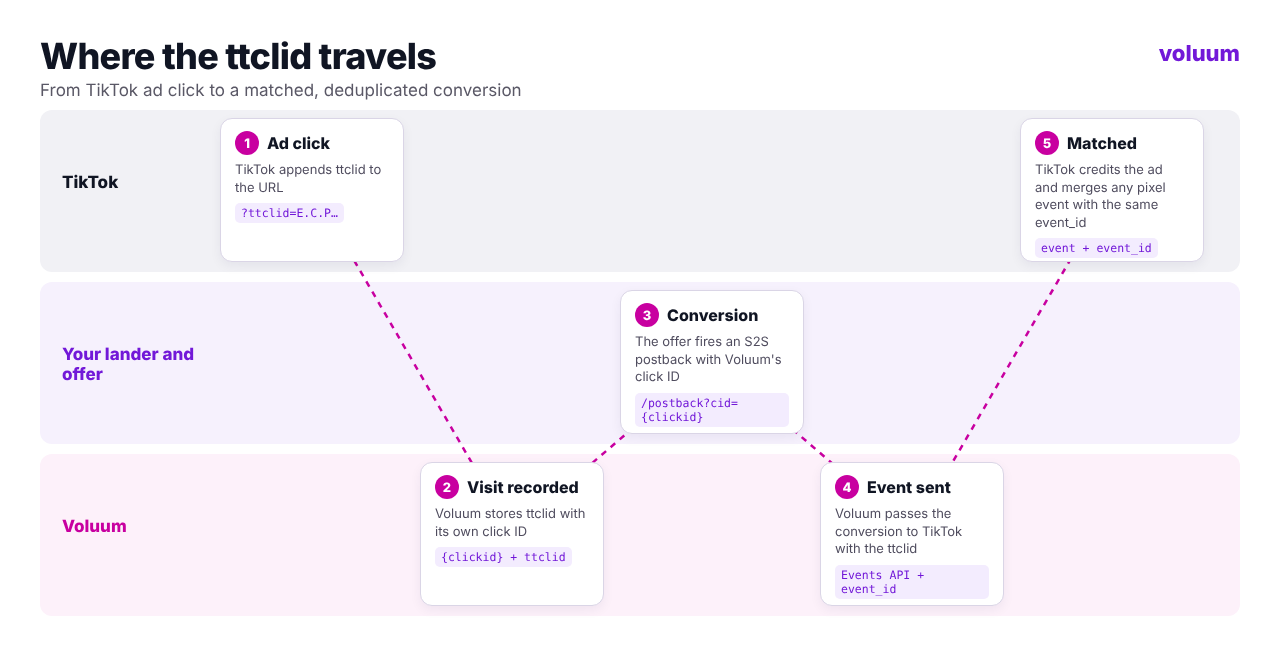
Step 1: Add TikTok as a Traffic Source
In Voluum, go to Traffic sources, click Create and choose Traffic source. Pick the TikTok template, adjust anything you need and save. The template saves you from building the setup by hand.
The template already captures the ttclid that TikTok appends, so the click ID is stored with every visit and can travel back to TikTok with the conversion. You don’t need to add a macro for it.
Step 2: Pass Campaign Details With Macros
TikTok fills in dynamic macros at click time, so you can see campaign, ad group and creative names in your Voluum reports. Add them as custom variables in the traffic source:
| Parameter | TikTok macro | What it passes |
|---|---|---|
| campaign_id | __CAMPAIGN_ID__ | Campaign ID |
| campaign_name | __CAMPAIGN_NAME__ | Campaign name |
| adgroup_id | __AID__ | Ad group ID |
| adgroup_name | __AID_NAME__ | Ad group name |
| creative_id | __CID__ | Creative ID |
| creative_name | __CID_NAME__ | Creative name |
| placement | __PLACEMENT__ | Placement, such as TikTok or Pangle |
| ad_id | __ADID_V2__ | Ad ID in upgraded Smart+ campaigns |
Two details trip people up. Macros are case-sensitive and need exactly two underscores on each side, so __cid__ won’t work. And upgraded Smart+ campaigns use different ad-level macros, so check which campaign type you’re running before you rely on the creative fields.
Step 3: Create the Campaign and Paste the URL Into Your Ad
Create a Voluum campaign with the TikTok traffic source, your offer and, optionally, a lander. Copy the campaign URL and paste it as the destination URL of your TikTok ad. TikTok appends the ttclid on its own when someone clicks.
Step 4: Connect TikTok in Automizer
In Voluum, open Automizer, go to Traffic sources and add the TikTok integration by signing in with your TikTok for Business account. Beyond conversions, the integration brings TikTok cost data into Voluum and lets you manage integrated campaigns from your reports, which keeps ROI honest without manual cost uploads.
Step 5: Generate the Postback That Feeds the Events API
Create a pixel in TikTok’s Events Manager if you don’t have one. Then, in Automizer’s Traffic sources tab, click Generate next to the TikTok integration, enter the pixel ID, choose the event type and click Generate Postback URL. Paste that URL into your TikTok traffic source in Voluum as the traffic source postback URL.
From now on, every conversion Voluum records for a TikTok click is passed back to TikTok with its ttclid. The event type you choose should match the event your ad group optimizes for. Otherwise TikTok will receive the conversions but won’t use them to steer delivery.
Step 6: Test Before You Spend
Before you scale, test your TikTok ads tracking end to end. Click your own ad or a test link with a ttclid, trigger a test conversion and check three places: the visit in Voluum, the conversion in Voluum and the event in TikTok’s Events Manager. If one of them is missing, the troubleshooting table below tells you where to look.
Deduplication: Pixel and Events API Without Double Counting
Running the pixel and the Events API side by side gives your TikTok ads tracking the most complete picture, but only if TikTok knows when two events describe the same conversion. Otherwise, one sale shows up twice and your reported CPA looks twice as good as it is.
The rule is simple. Both events need the same event name and the same event_id. According to TikTok’s deduplication guide, matching events that arrive within five minutes are merged, and duplicates received within 48 hours are removed.
In practice, use an ID that already exists for the conversion, such as the order or transaction ID, as the event_id on both sides. If your conversion only happens on a network’s offer page and never touches your own site, there’s no pixel event to collide with, and the postback route alone is enough.
Running the pixel on your own site as well? Then make sure the pixel event and the server-side event for the same conversion share an event_id. If you can’t line the two up, send each event type through one route only, either the pixel or the Events API, so nothing is counted twice.
TikTok Not Tracking Conversions? Check These First
When the numbers don’t add up, start with the symptom:
| What you see | Likely cause | What to do |
|---|---|---|
| No visits in Voluum | The ad doesn’t point to the Voluum campaign URL | Check the destination URL in TikTok and click it once yourself |
| Visits but no ttclid | A redirect or lander drops URL parameters | Pass all parameters through every hop and test with a real ad click |
| Conversions in Voluum, none in TikTok | No traffic source postback, wrong pixel ID or expired integration | Regenerate the postback in Automizer and paste it into the traffic source |
| Events arrive but don’t count for optimization | Event type doesn’t match the ad group’s optimization event | Use the same event type in Voluum’s postback and in the ad group |
| Conversions counted twice | Pixel and Events API send the same event without a shared event_id | Send the same event name and event_id from both |
| Numbers differ from Voluum, but both look healthy | Different attribution windows or view-through credit | Compare on the same window, or rely on click-through numbers |
That last row isn’t a bug. TikTok counts conversions within its attribution window, which defaults to 7-day click and 1-day view for web campaigns, while Voluum matches every conversion to its click for much longer. Our guide to the attribution window explains how to compare the two fairly, and the article on attribution models covers how each side decides who gets the credit.
For problems that aren’t TikTok-specific, such as broken postbacks or missing parameters, see our list of the most common tracking issues. And if you pass more than click IDs back and forth, the piece on postbacks and dynamic parameters shows how the two work together.
What to Watch Once It Works
Once your TikTok ads tracking works in both directions, TikTok’s bidding gets better signal and your reports get cleaner. Judge TikTok in Voluum with the same affiliate marketing KPIs you use for every other source, such as EPV against CPV and eCPA against payout, so it competes on equal terms.
Running app campaigns? The setup differs, because app installs usually run through a mobile measurement partner. Our guide to mobile attribution covers that side. And if Meta is your other big channel, our comparison of Facebook ad tracking software looks at the same problem from Meta’s side.
Give TikTok the Data It Needs to Scale
TikTok’s algorithm is only as smart as the conversions you send it. Voluum handles TikTok ads tracking end to end: it keeps the ttclid with every click, records conversions from any offer and sends them back to TikTok through its integration, while tracking every other source in the same report. Compare Voluum plans and set it up in an afternoon.
Frequently Asked Questions
What is ttclid?
The ttclid is the TikTok click ID, a parameter TikTok adds to the landing page URL whenever someone clicks an ad. It identifies the exact click, so when a conversion is sent back to TikTok with the same ttclid, TikTok can match it to the right campaign, ad group and ad. Genuine values start with “E.C.P”.
How do I track TikTok ads conversions?
Keep the ttclid with the visit, record the conversion with a pixel on your own site or a postback from your affiliate network, and send it back to TikTok through the Events API. With Voluum, you use the TikTok traffic source template, connect the integration in Automizer and add the generated postback URL to the traffic source.
What is the TikTok Events API?
The TikTok Events API is a server-side way to send conversion events to TikTok without relying on the browser. It works alongside the TikTok pixel, recovers events that blockers or privacy settings stop, and is the only option when the conversion happens on a page where you can’t install the pixel.
Do I need both the TikTok pixel and the Events API?
You don’t strictly need both, but using them together gives TikTok the most complete data. If you do, send the same event name and event_id from each so TikTok can deduplicate them. If your conversions only happen on an affiliate network’s offer page, the Events API route through your tracker is enough on its own.
Why is TikTok not tracking my conversions?
The most common causes are a missing ttclid, dropped by a redirect or lander, a missing or outdated postback to TikTok, a wrong pixel ID, or an event type that doesn’t match the ad group’s optimization event. Test one click end to end and check where the trail stops: the visit, the conversion or the event in TikTok.



 Facebook
 Telegram


